No ads, no promoted rows
Home shows your own apps and what you were in the middle of watching. Nothing on it is sponsored or sold.
shangOS shows your apps and nothing else: no promoted rows, no sign-in, no tracking. It is free, open source and reversible, and you set it up from your computer in about five minutes.
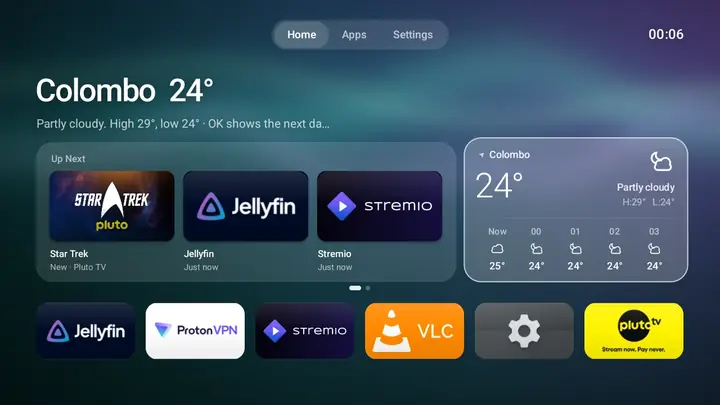
The first thing you see every day should not be an advert or a data collector. Everything here is reachable with the d-pad and OK: no phone, account or keyboard.
Home shows your own apps and what you were in the middle of watching. Nothing on it is sponsored or sold.
No accounts, analytics or crash reports. Weather and poster pictures can use the internet, both only if you allow them, and the Offline build removes even that permission.
Built and tested on a stick with 1.4 GB of RAM. It picks a performance level for your TV, shows why, and lets you change it.
Choose the order of your apps and which widgets show: Up Next, Now Playing, Control, Inputs and Weather. Hide what you never use.
Eight wallpapers, a clock-over-wallpaper screen saver, and your own photo. Tiles take their colour from each app’s own icon.
Home goes back to your TV’s launcher before shangOS is removed. The wizard remembers what it changed so it can reverse it.
Run this in a terminal on a computer on the same Wi-Fi as the TV. A guided wizard finds the TV, shows every command before it runs, and installs the signed release.
macOS
$ curl -fsSL https://shangos.madusha.dev/setup.sh | bashLinux
$ curl -fsSL https://shangos.madusha.dev/setup.sh | bashWindows
PS> [Net.ServicePointManager]::SecurityProtocol = [Net.SecurityProtocolType]::Tls12; iex ((New-Object Net.WebClient).DownloadString('https://shangos.madusha.dev/setup.ps1'))First time? The setup page shows how to turn on debugging on the TV. You can read the script before running it.
shangOS itself shows no ads, but your other apps still can. One setting makes the whole TV refuse known ad and tracker domains.
It uses Android’s built-in Private DNS, set to AdGuard DNS or to a server of your own. It is off unless you ask for it, and one command turns it off again.
Be aware: the DNS provider you pick sees the names your TV looks up. Some apps may show fewer ads, load differently, or refuse to start. Apps that use their own DNS skip the filter. The details and the limits.
macOS
$ curl -fsSL https://shangos.madusha.dev/setup.sh | bash -s -- --dns adguard$ curl -fsSL https://shangos.madusha.dev/setup.sh | bash -s -- --dns offLinux
$ curl -fsSL https://shangos.madusha.dev/setup.sh | bash -s -- --dns adguard$ curl -fsSL https://shangos.madusha.dev/setup.sh | bash -s -- --dns offWindows
PS> & ([scriptblock]::Create((New-Object Net.WebClient).DownloadString('https://shangos.madusha.dev/setup.ps1'))) -Dns adguardPS> & ([scriptblock]::Create((New-Object Net.WebClient).DownloadString('https://shangos.madusha.dev/setup.ps1'))) -Dns offPick one in Settings with a live preview. Daybreak follows the time of day. Milky Way and Calm Sea are photographs from Poly Haven (CC0); the other six were generated for this project.








There are two things, both under your control. Everything else stays on the device.
After ten trips back to Home, shangOS 0.2.2 held 57.6 MB and Luma TV 2.4 held 103 MB (44% less). Start-up time was about the same.
| Measure | Luma TV 2.4 | shangOS 0.2.2 (auto) |
|---|---|---|
| Memory in use, idle on Home | 70.8 MB | 46.6 MB |
| Memory after 10 trips back to Home | 103.0 MB | 57.6 MB |
| Time to first frame after a restart (median of 8) | 458 ms | 477 ms |
| Trip back to Home | 143 ms | 136 ms |
| Processor use while idle on Home | 9.6 % of one core | 4.4 % of one core |
| Janky frames while moving around | 7.0 % | 3.7 % |
Measured 2026-10-30 on one TV: onn. Full HD Streaming Device, Android 14 (API 34), armeabi-v7a (1.4 GB RAM, 1280x720 at 213 dpi). The current release is 0.6.1; shangOS 0.2.2 was measured, so newer versions have not been measured yet. One TV on one day is a guide, not a promise; differences under about 10% are noise. Memory is Android’s own figure (PSS), in MB of 1,024 kB. The method is written down, the raw numbers are in bench.json, and tools/bench.sh measures your own TV.
Every release has two APKs (Standard and Offline) and a SHA256SUMS file. The setup page lists the few adb commands and how to check the signature.
# check the download, then the signer
$ sha256sum -c SHA256SUMS --ignore-missing
$ apksigner verify --print-certs shangos-*-release.apk
The certificate fingerprint must match the release notes and the TV’s own Settings, Privacy, This build screen.
Android TV and Google TV have no setting for choosing a different home app, so it is set once with adb, Android’s standard developer tool, over your home network. The setup wizard does it for you and takes about five minutes.
You can check each part yourself. The source is public. Each release is signed, ships with a SHA256SUMS file, and the setup wizard checks it before installing. The app has no accounts and no analytics, and the Offline build does not even ask Android for network access. Read the privacy page for exactly what is sent, and when.
shangOS itself shows none, but it does not change other apps. If you want that, the setup wizard can switch on an optional ad and tracker filter for the whole TV (Android’s Private DNS). It is off by default, it can be undone with one command, and it has limits: read them first.
It needs an Android TV or Google TV on Android 12 or newer, and the wizard checks that for you. It was built and measured on one small stick (an onn. Full HD Streaming Device) and has not been tested on every brand, so please tell me what you find. Not for phones, tablets or Fire TV.
It installs one app and makes it the home screen. The TV’s own home and setup apps stay switched on, so the TV always has a home to start with; if the TV keeps opening its own home, open shangOS from the app row. Nothing else is touched: no root, no firmware. Full list.
Run the wizard again and choose Remove shangOS. It gives Home back to your TV’s launcher first, then removes the app. Manual steps are on the setup page.
shangOS does not check for or download updates itself. Run the wizard again, or install the new APK over the old one with adb install -r. Releases are signed with the same key, so your order, name and wallpaper stay.
No. It is built for the remote and a TV screen, and needs Android 12 or newer on an Android TV or Google TV device.